
Description
Let people see your product from every side, and then in their own room.
Documentation | Demo | Support
Softicon 3D Model Viewer adds one block, 3D Model Viewer, to the WordPress editor. Drop in a GLB or glTF file and your visitors can:
- Rotate the model and zoom into every detail.
- Watch it turn slowly on its own, or watch the model’s own animation play.
- Tap View in your room on a phone or tablet and place the model in their own space with augmented reality (Android Scene Viewer, iPhone and iPad Quick Look, and WebXR).
It is perfect for furniture, lighting, decor, fashion, art, products and anything people want to look at from every side. For the Classic Editor and page builders like Elementor, every saved model also has a shortcode.
New in 1.6: animations, the model in the product gallery, a 3D button on shop pages, and colors that follow the variation. See them in one minute:
Everything in one block
- Your model: upload a GLB or glTF file, pick one from the media library, or add one from a URL.
- Accessibility: alternative text, plus an optional poster image that shows while the model loads.
- Interaction: rotate and zoom (turn zoom or panning off if you like), automatic rotation with its speed and delay, a small hint that invites visitors to drag, and a full screen button.
- Animation: play the animations saved in your model (a door that opens, a walking character, a product demo). Pick one, play it automatically, once or in a loop, and add a play/pause button.
- Augmented reality: turn the “View in your room” button on or off, and write your own button text. On a computer the button opens a QR code: visitors scan it with their phone, the page opens there, and one tap places the model in their room.
- Colors and materials: when the model has material variants, choose the one it starts with and show a button for each, so visitors switch colors themselves.
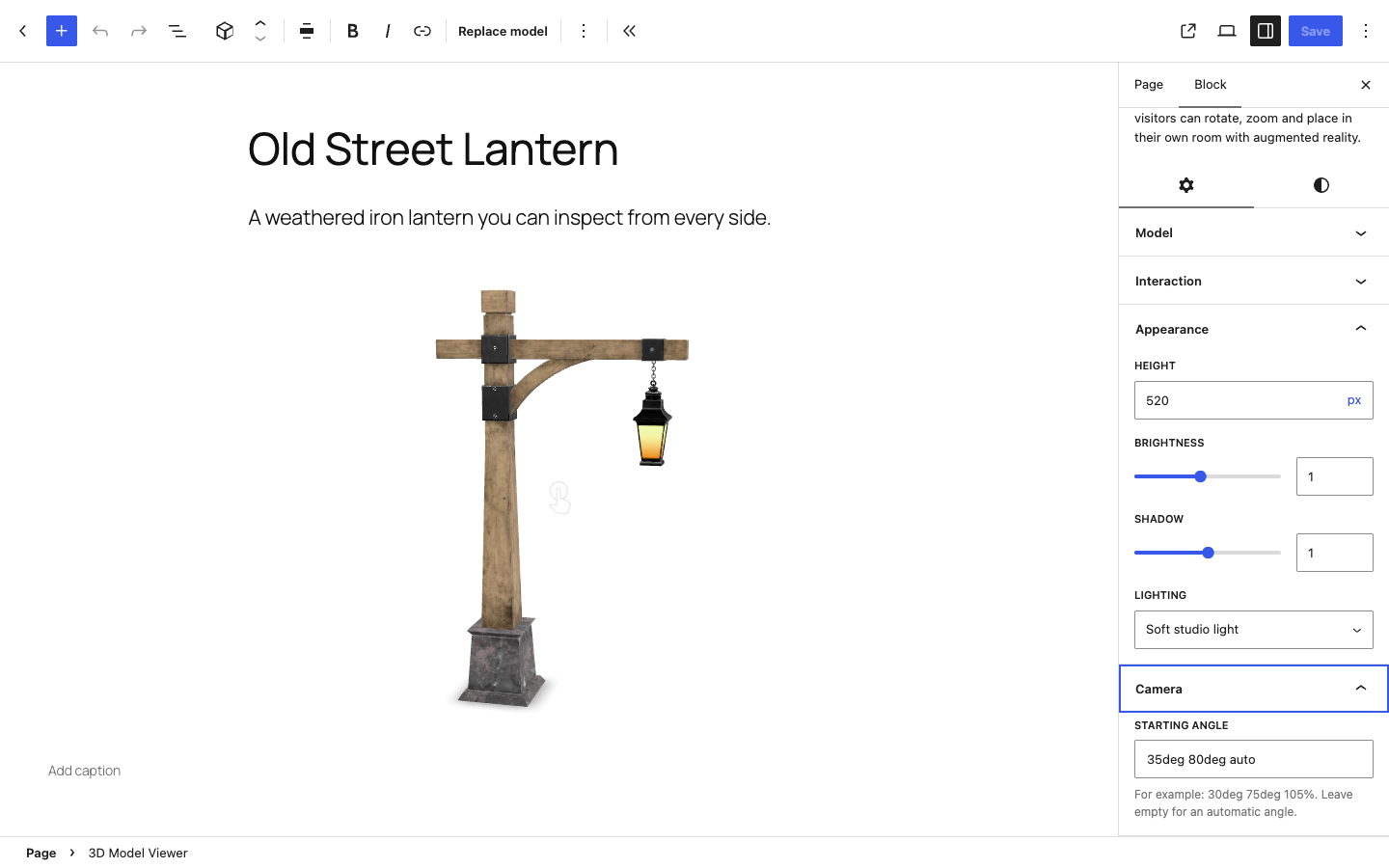
- Appearance: height, brightness, shadow strength, and two lighting styles (soft studio or classic).
- Camera: choose the starting angle, or let the viewer pick one for you.
- Hotspots: click on the model to add numbered points, each with a label and a short text. They turn with the model, fade when they are behind it, and open their text on click.
- Design: caption, and wide or full width.
- Shortcode: for the Classic Editor, Elementor, Divi and widgets, save a model under Model Viewer All 3D Models and paste its shortcode, such as
[softicon_model_viewer id="123"].
3D for your WooCommerce products
Running a shop? Give any product its own 3D model:
- A 3D model tab on the product screen: pick a GLB or glTF file, an optional poster image, and turn “View in your room” on or off.
- A View in 3D button appears under the product images. It opens the model in a popup where shoppers turn it, zoom in and, on a phone, place it in their own room.
- Or show the model in the product gallery: a 3D thumbnail next to the photos, and the model first if you like.
- A 3D button on shop pages: shoppers open a product’s model right from the shop, categories and other product lists.
- Colors and materials in 3D: when a model has material variants, it follows the variation shoppers choose. A variant named like an option (such as “Oak”) shows for it, or pick one per variation.
Set it all up in two minutes, step by step:
https://www.youtube.com/watch?v=omqFTzv25oU
* Hotspots on the product’s model: name its parts right on a preview in the 3D model tab, and shoppers see them in the popup.
* The model loads only when it is shown, so your product pages stay fast. Products without a model are not changed at all.
* Works with block themes (like Twenty Twenty-Five) and classic themes (like Storefront).
Why you’ll like it
- A dashboard that sets you up. Under Model Viewer in the admin menu: a checklist that ticks itself as you add models, pages, products and hotspots, your 3D content at a glance, and the video tutorials. No account to create. Sharing usage data is optional and off until you allow it.
- Everything is free. Augmented reality, posters, lighting and every other setting are included. There is no Pro version.
- Fast pages. The 3D viewer only loads on pages that use the block, and the model is lazy-loaded. Draco and KTX2 compressed models work too, with the decoders included in the plugin.
- Works with any theme, and with the block editor you already know.
- Readable code. The full, readable source ships with the plugin, so it is easy to review and extend.
Video tutorial
See every step in about 80 seconds: installing the plugin, adding a 3D model to a WooCommerce product, and showing one on any page with the block.
For the product gallery, the shop button and colors in 3D, watch the WooCommerce tutorial (2 minutes). For everything new in 1.6, the what’s new video (1 minute).
Privacy
The 3D viewer on your pages sets no cookies and contacts no external service: models are loaded from your own media library or from the URL you enter.
In the admin, after activation, the plugin asks once if you want to share basic data with us through Freemius (wp.freemius.com, api.freemius.com). It is optional, and nothing about you or your site is sent unless you click “Allow & Continue”. See “Does the plugin collect any data?” below. Freemius terms and privacy policy.
Support
Need help, found a bug, or have an idea for a new feature? We are happy to help.
- Website: softiconai.com
- Email: softiconai@gmail.com
- Forum: open a topic in the support forum.
- Video tutorials: setup, WooCommerce and what’s new in 1.6 on YouTube
To help us answer faster, please include your WordPress version, your theme, and a link to the page (or the model file).
Third-party libraries
The block loads one bundled library, model-viewer by Google, from the plugin folder, plus a decoder from the same folder when a model is compressed. Nothing is loaded from a CDN or another server.
- @google/model-viewer 4.4.0, Apache License 2.0. Source: https://github.com/google/model-viewer/tree/v4.4.0
- It includes three.js r183 (MIT, https://github.com/mrdoob/three.js), Lit (BSD-3-Clause, https://github.com/lit/lit) and @monogrid/gainmap-js (MIT, https://github.com/MONOGRID/gainmap-js).
- For compressed models,
vendor/model-viewer/decoders/holds the Draco decoder (Apache License 2.0, https://github.com/google/draco) and the Basis Universal transcoder (Apache License 2.0, https://github.com/BinomialLLC/basis_universal), unmodified from three.js r183 (examples/jsm/libs/draco/gltf/andexamples/jsm/libs/basis/).assets/js/viewer-decoders.jspoints the viewer at them. - qrcode-generator 1.5.2 by Kazuhiko Arase, MIT License, https://github.com/kazuhikoarase/qrcode-generator. It makes the QR code for “View in your room” on computers, in the browser. It is bundled into
build/qrcode.js, which loads only when the QR code opens; its readable source is at the link above.
The minified file vendor/model-viewer/model-viewer.min.js is the unmodified dist/model-viewer-umd.min.js from the npm package. The readable, non-minified build of the same version is included next to it as vendor/model-viewer/model-viewer.js, together with the Apache license and a list of all bundled projects in vendor/model-viewer/THIRD-PARTY-NOTICES.txt.
Models in the screenshots and videos
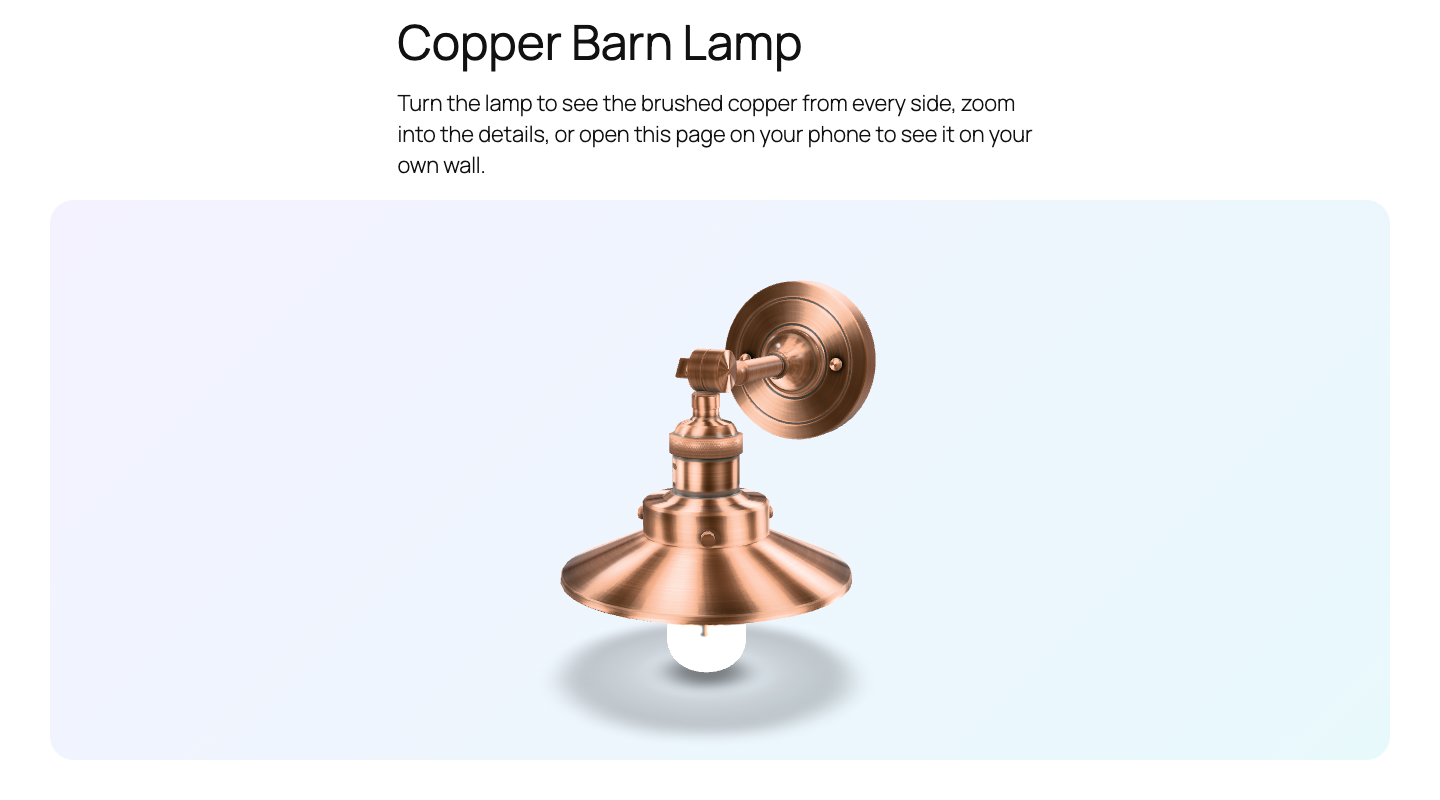
The screenshots, banner and videos use sample models from the Khronos glTF Sample Assets (https://github.com/KhronosGroup/glTF-Sample-Assets): Anisotropy Barn Lamp by Eric Chadwick, © 2023 Wayfair LLC (CC BY 4.0), Diffuse Transmission Plant by Eric Chadwick (CC BY 4.0) and Rico Cilliers (CC0), and Lantern (CC0). The 1.6 videos use Fox by PixelMannen (CC0), rigged and animated by tomkranis (CC BY 4.0), glTF conversion by AsoboStudio and scurest (CC BY 4.0), and Materials Variants Shoe, © Shopify (CC BY 4.0). They are not included in the plugin.
Source code of this plugin
The plugin ships the readable source of the block next to the built files:
src/holds the source:src/index.jsandsrc/Components/(editor, in JSX),src/render.php(front end),src/block.json(block settings) and the SCSS files.src/vendor/softicon-tools/holds the shared settings panel components and styles.build/holds the files WordPress loads, made fromsrc/with@wordpress/scripts.
To build it yourself, run npm install and then npm run build in the plugin folder (see package.json).
Screenshots
Blocks
This plugin provides 1 block.
- 3D Model Viewer Show an interactive 3D model that visitors can rotate, zoom and place in their own room with augmented reality.
Installation
- In your WordPress dashboard, go to Plugins Add New Plugin and search for Softicon Model Viewer.
- Click Install Now, then Activate.
- Edit any page or post, click the + button, and add the 3D Model Viewer block.
- Upload a GLB or glTF file, or choose one from the media library, and publish.
You can also upload the plugin folder to /wp-content/plugins/ and activate it on the Plugins screen.
How to use
- Add the 3D Model Viewer block to a page or post.
- Click Upload, Media Library or Insert from URL and choose your model.
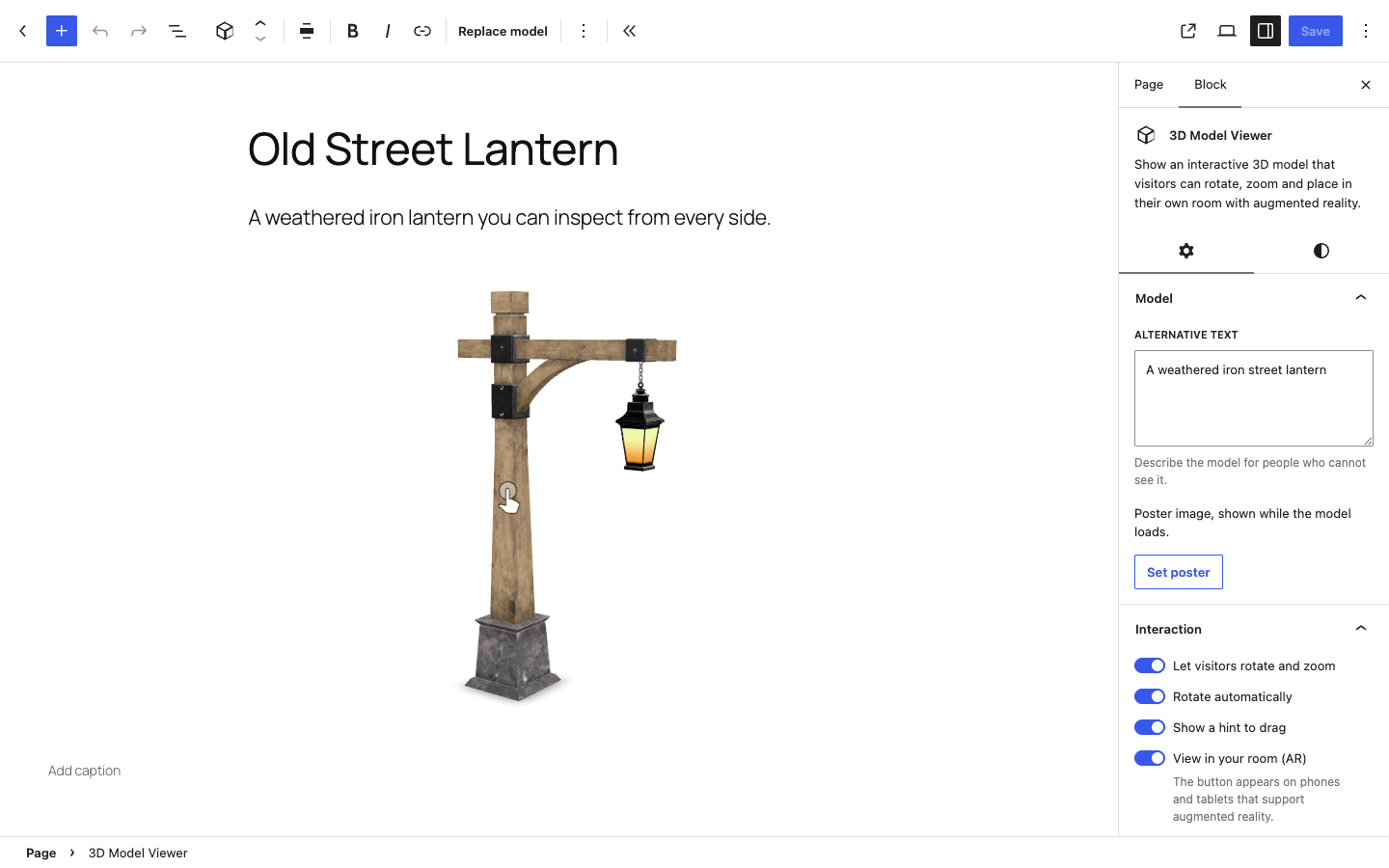
- In the block settings on the right, the General tab has Help (video tutorial and support), Model (alternative text and an optional poster image) and Interaction (rotate and zoom, automatic rotation, the drag hint, and the AR button).
- On the Style tab, set the height under Size, the lighting style, brightness and shadow under Lighting, and a starting angle such as
35deg 78deg autounder Camera (or leave it empty). - If your model has animations, open Animation on the General tab: choose one, turn on Play automatically or Show a play/pause button, and turn off Loop to play it once.
- To point out parts of the model, open Hotspots on the General tab, click Add hotspot, then click on the model where it goes, and give it a label and an optional text.
- Publish. Visitors can now rotate and zoom the model, and open it in AR on their phone.
Use a shortcode (Classic Editor, Elementor, Divi)
- Go to Model Viewer All 3D Models and click Add a 3D model.
- Give it a title, choose the model in the block and set it up as above, then click Publish.
- Back in All 3D Models, click the shortcode in the Shortcode column to copy it, such as
[softicon_model_viewer id="123"]. - Paste it into a classic post, Elementor’s Shortcode widget, a Divi Code module or a Shortcode widget. Change the model later and every page with its shortcode shows the change.
Add a 3D model to a WooCommerce product
- Go to Products and edit a product.
- In the Product data box, open the 3D model tab.
- Click Choose model and pick a GLB or glTF file from the media library (or upload one).
- Optionally click Choose image to add a poster that shows while the model loads, and untick View in your room if you do not want the AR button.
- Click Update. A View in 3D button now shows under the product images.
To show the model in the product gallery instead, or to add a 3D button to products on shop pages, go to WooCommerce Settings Products 3D models.
If the model has material variants (colors or materials saved in the GLB file), they switch with a variable product’s options: a variant named like an option, such as “Oak”, shows when shoppers choose Oak. To pick one yourself, open a variation under Variations and choose its 3D model variant.
To name parts of the product, click Add hotspot under the model preview in the same tab, click on the model where it goes, and type a label and an optional text.
To take the model off a product, click Remove in the 3D model tab and update the product. Its hotspots are removed with it, since they sit on that model.
FAQ
-
Is there a video tutorial?
-
Yes. The step-by-step tutorial shows the whole process in about 80 seconds, for WooCommerce products and for any page. The WooCommerce tutorial adds the product gallery, the 3D button on shop pages and colors in 3D in about two minutes, and the what’s new video shows everything new in 1.6 in one minute.
-
Which file types can I use?
-
GLB (recommended, a single file) and glTF. To place models in a room on iPhone and iPad, the viewer converts the GLB automatically.
-
Why does the plugin allow GLB and glTF uploads?
-
WordPress does not allow these file types by default, so the plugin adds them to the list of allowed uploads for users who can already upload files. This is the only server-side change it makes.
-
What does “View in your room” do on a computer?
-
Augmented reality needs a phone or tablet with a camera and AR support. On a computer the button opens a QR code instead: visitors scan it with their phone’s camera, the same page opens on the phone at that model, and one tap places it in their room. The QR code is made in the browser; nothing is sent to another service. Turn it off under Interaction QR code on computers, or for the whole site, including WooCommerce products, with
add_filter( 'softicon_model_viewer_ar_qr', '__return_false' );. -
How do hotspots work?
-
A hotspot is a numbered point on the model with a label and an optional text. Add one by clicking Add hotspot and then clicking on the model. It stays on that spot when visitors turn the model, fades when it is behind the model, and its text opens on hover, click or keyboard focus. Turn off Always show labels to show only the numbers until a point is opened.
-
Does it work with WooCommerce?
-
Yes. With WooCommerce active, each product gets a 3D model tab. Add a model there and a View in 3D button appears under the product images, opening the model in a popup. Under WooCommerce Settings Products 3D models you can show it in the product gallery instead, and add a 3D button to products on shop pages. Developers can change the button texts with the
softicon_model_viewer_wc_button_textandsofticon_model_viewer_wc_shop_button_textfilters. -
Can the 3D model change color with the product’s variations?
-
Yes, when the GLB file has material variants (the glTF KHR_materials_variants extension, made in Blender and other 3D programs). The 3D model tab lists them. A variant named like an option of a variable product shows when shoppers choose it, and in each variation you can pick the variant yourself.
-
How large should my model be?
-
Keep files small for fast pages, ideally under 5 MB. Compress textures before you export the model. Draco (mesh) and KTX2 (texture) compression are supported, and their decoders load from the plugin folder, not from another server.
-
Can I play the animation in my model?
-
Yes. If the GLB file has animations, the Animation section of the block lists them. Choose one, play it automatically, once or in a loop, and show a play/pause button if you like. Animations are made in the 3D program the model comes from (Blender, for example) and saved in the file.
-
Can I use it with the Classic Editor, Elementor or Divi?
-
Yes. Go to Model Viewer All 3D Models, click Add a 3D model, set it up in the block and publish it. The list shows its shortcode, such as
[softicon_model_viewer id="123"]; paste it where the model should be. In Elementor’s Shortcode widget the model shows right away in the editor. Only published models show, and a model always opens in the block editor, even with the Classic Editor plugin. -
Does it work with my theme?
-
Yes. The block works with any theme. It also supports wide and full alignment, so it can stretch across the page in themes that allow it.
-
Does the plugin collect any data?
-
From your visitors: nothing. The 3D viewer sets no cookies, tracks no one and sends nothing anywhere.
From you, the site admin: only if you say yes. After activation, the plugin asks once if you would like to opt in. Click “Skip” and nothing about you or your site is ever sent; the plugin works exactly the same either way.
If you click “Allow & Continue”, this is shared with us through Freemius, the service we use to manage our users:
- Your profile: your first name, last name and email address.
- Your site: the site address, title and language, and an anonymous site ID (a one-way code made on your site, so the same site is not counted twice).
- Versions: your WordPress, PHP and Softicon Model Viewer versions.
- Plugin events: when the plugin is activated, deactivated, updated or deleted.
We never collect your posts, pages or models, anything about your visitors, or the list of your other plugins and themes.
Why we ask: to email you about security fixes and important new features, to know which WordPress and PHP versions we must keep supporting, and to learn what to improve.
Changed your mind? Click “Opt Out” under Softicon Model Viewer on the Plugins page and nothing more is sent. To have your data deleted, email us at softiconai@gmail.com.
When you deactivate the plugin, a short form asks why. Answering is optional (“Skip & Deactivate” is always there). If you choose a reason, it is sent only when you delete the plugin. If you never opted in, only the reason and the anonymous site ID are sent, never your name or email.
The opt-in is a small built-in client (vendor/fs-lite/fs-lite.php) instead of the full Freemius SDK. It connects to wp.freemius.com and api.freemius.com and nowhere else. If your server is not allowed to reach Freemius, your browser sends the same opt-in to wp.freemius.com instead, and Freemius sends you back to the plugin’s page.
-
Is it really free?
-
Yes. Every feature, including augmented reality, is free. There is no Pro version and no account to create.
-
How do I get support?
-
Visit our support website, softiconai.com, or send an email to softiconai@gmail.com and we will get back to you as soon as we can. You can also post in the support forum. Please tell us your WordPress version, your theme and, if possible, share a link to the page or the model file.
Reviews
There are no reviews for this plugin.
Contributors & Developers
“Softicon 3D Model Viewer – Interactive 3D & AR Product Viewer” is open source software. The following people have contributed to this plugin.
Contributors
Translate “Softicon 3D Model Viewer – Interactive 3D & AR Product Viewer” into your language.
Interested in development?
Browse the code, check out the SVN repository, or subscribe to the development log by RSS.
Changelog
1.7.0
- New: “View in your room” on computers. The button opens a QR code; visitors scan it, the page opens on their phone at the model, and one tap places it in their room. In the block, the shortcode and the WooCommerce popup and gallery. On by default where AR is on; turn it off under Interaction, or with the
softicon_model_viewer_ar_qrfilter. - New: colors and materials in the block. When a model has material variants, choose the one it starts with and show a button for each.
- New: a full screen button (off by default).
- New: turn zoom or panning off, and set the speed and the delay of the automatic rotation.
1.6.1
- New: two videos. “What’s new in 1.6” shows animations, the product gallery, the shop button and colors in 3D in one minute; the WooCommerce tutorial sets them up step by step in two minutes.
- The videos are linked from the Model Viewer dashboard (Welcome, Getting started and Help), the product’s 3D model tab, WooCommerce › Settings › Products › 3D models, and the block’s Animation section.
1.6.0
- New: show a product’s 3D model in the product gallery, with a 3D thumbnail next to the photos and a Photos / View in 3D switch. Choose it under WooCommerce Settings Products 3D models, and whether the model shows first.
- New: a 3D button on products in the shop, categories and other product lists. It opens the model in a popup without leaving the page.
- New: material variants follow the chosen variation of a variable product. A variant named like an option shows for it, or pick one in each variation. The 3D model tab lists the model’s variants.
- The Getting started guide on the dashboard links the new settings.
1.5.0
- New: animations. A model’s own animations are listed in the block’s new Animation section: choose one, play it automatically, once or in a loop, and add a play/pause button. Existing blocks do not change until you turn it on.
- New: Draco and KTX2 compressed models load their decoders from the plugin folder. Before, the viewer downloaded them from gstatic.com for such models.
1.4.0
- New: a shortcode for the Classic Editor, Elementor, Divi and widgets. Save a model under Model Viewer All 3D Models, publish it and paste its shortcode, such as
[softicon_model_viewer id="123"]. A click in the Shortcode column copies it, and in Elementor’s Shortcode widget the model shows right away in the editor. - New: “Getting started” on the Model Viewer dashboard, with a tab for each way to show a model (block editor, shortcode, Elementor, WooCommerce, theme or PHP), numbered steps and the shortcode of your newest model to copy.
- Our support website, softiconai.com, is linked from the Plugins screen, the dashboard’s Help tab and the block’s Help panel.
- The plugin is now called Softicon 3D Model Viewer, so it is easier to find when you search for “3D Model Viewer”.
1.3.1
- New: a Model Viewer dashboard in the admin menu. A setup checklist ticks itself as you upload a model, add it to a page or a product and add hotspots; your 3D pages and products are listed with their numbers, and the Help tab has the video tutorials and answers.
- New: “New page with a 3D model” opens a new page with the block already in it.
- The opt-in card now shows on the dashboard.
1.3.0
- New: hotspots. Click on the model to add numbered points with a label and a short text, in the block (General tab, Hotspots) and on WooCommerce products (the 3D model tab). They turn with the model, fade when they are behind it, and open their text on hover, click or keyboard focus.
- New: “Always show labels” for hotspots, or only the numbers until a point is opened.
- New: an optional opt-in after activation for security and feature update emails, through Freemius. Nothing about you or your site is sent unless you click “Allow & Continue”; visitors are never tracked. See “Does the plugin collect any data?” in the FAQ.
- New: an optional short form when you deactivate the plugin, asking why.
1.2.0
- New: WooCommerce support. Each product gets a 3D model tab: pick a GLB or glTF file, an optional poster image, and turn the AR button on or off.
- New: a View in 3D button under the product images opens the model in a popup, where shoppers turn it, zoom in and, on a phone, place it in their own room. The model loads only when the button is clicked.
- New: works with block themes (the product image gallery block) and classic themes (like Storefront).
- New: the
softicon_model_viewer_wc_button_textfilter changes the button text. - New: a new promo video and a new step-by-step video tutorial, linked from the plugin, the block and the product screen.
1.1.1
- Fixed: a block added right after installing the plugin from the block inserter’s search now shows its styles at once, without reloading the editor.
1.1.0
- New: redesigned block settings with General and Style tabs, and one section open at a time.
- New: a Help section with the video tutorial, support, rating and more plugins, plus the support email.
- New: lighting style as picture tiles, and Reset buttons for height, brightness and shadow.
- Changed: the background, spacing and border settings are no longer in the sidebar. Blocks that already use them keep their look.
- Changed: the editor code is now built from the readable source in
src/(see “Source code of this plugin”).
1.0.2
- New: a “Watch the video tutorial” link in the empty block, so you can learn it in about 90 seconds.
- New: “Video tutorial” and “Email support” links under the plugin on the Plugins screen.
- Improved: a clearer plugin page with videos, installation steps, a how-to guide and more answers in the FAQ.
1.0.1
- Renamed the plugin to Softicon Model Viewer (slug: softicon-model-viewer).
1.0.0
- Initial release.